- Corporate
- Solutions
- Microsoft Solutions Overview
- Microsoft Dynamics 365 Business Central ERP Solution with Copilot Ai technology
- Microsoft Dynamics 365 – Sales (CRM)
- Microsoft Sustainability Solutions
- Microsoft Copilot Services
- Microsoft Fabric
- Microsoft Dynamics 365 Finance
- Microsoft Dynamics 365 Supply Chain Management
- Marketplace Offers
- AI Agents
- Services

From AI Conversations to Business Actions
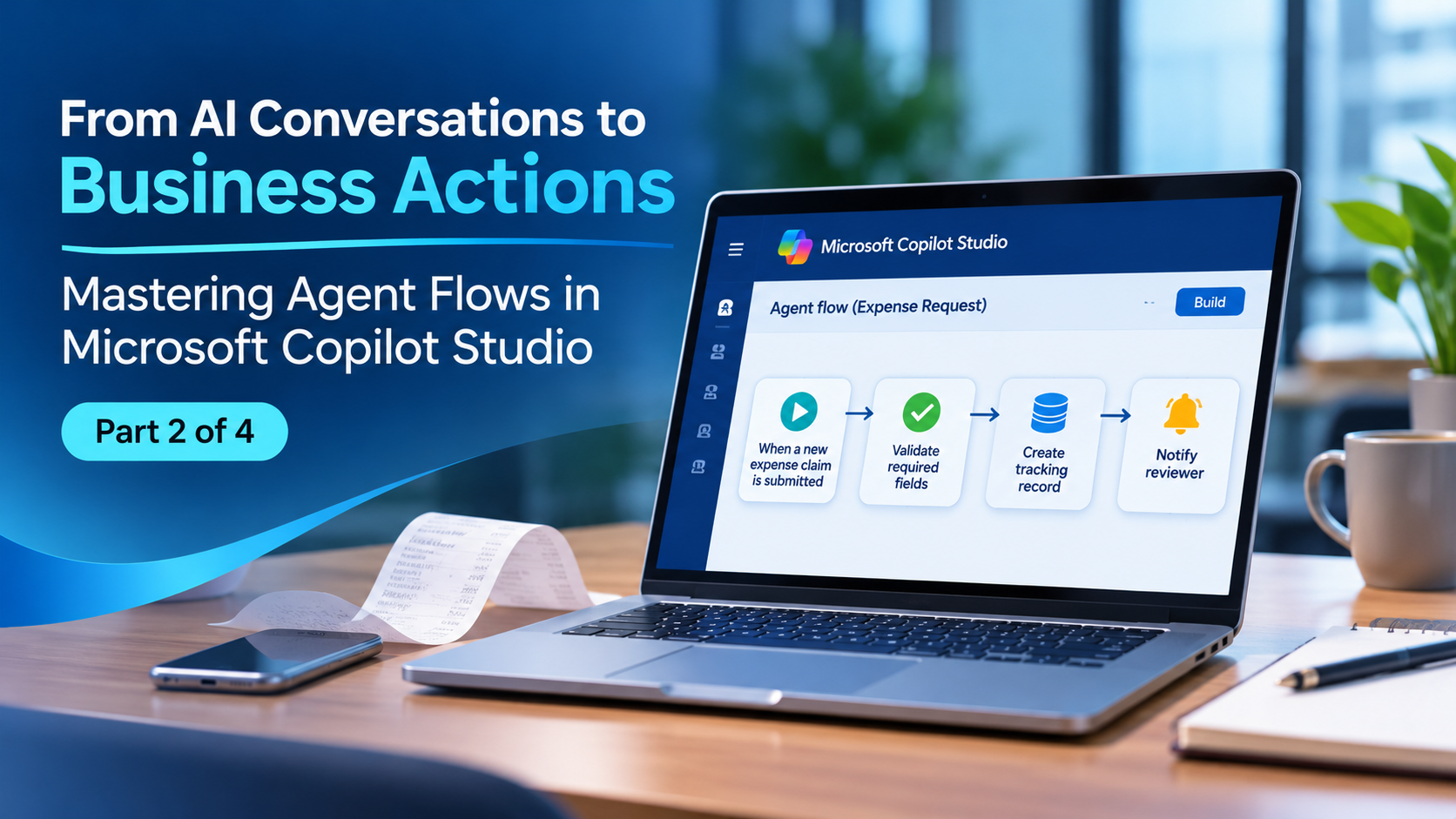
Mastering Agent Flows in Microsoft Copilot Studio
Compusoft Advisors
How to Create Agent Flows in Microsoft Copilot Studio
Mastering Agent Flows in Microsoft Copilot Studio | Part 2 of 4
A green success indicator tells you a flow completed. It does not tell you the right person received the request or that the correct record was updated.
You can create agent flows in Microsoft Copilot Studio using natural language or the visual designer. Natural language helps produce an initial configuration; the designer lets you inspect and refine the process. Reliable results depend on reviewing connections, validating data and testing business outcomes.
In Part 1, we defined an expense-request process. Today, we build its first version: receive a claim, check the required fields, create a tracking record and notify a reviewer.
What is an agent flow
Use a development environment and sample claims. Identify the approved data source, connection owner and reviewer. Decide which fields the tracking record needs: a request reference, employee identifier, amount, currency, category, receipt reference and status are useful starting points.
Do not assume access to an application automatically gives the flow permission to use it. Confirm the connector’s permissions and the organisation’s data policies before testing with business information.
Copilot Studio navigation varies between experiences. This series focuses on agent flows using standard orchestration. Microsoft also documents a newer workflow experience; its capabilities and authoring routes should not be treated as interchangeable.
Approach one Create the flow with natural language
Open the agent-flow creation option in Copilot Studio and use Copilot to describe the trigger, source, actions and conditions. Microsoft’s natural-language authoring guide explains the supported route and its external-model administration requirement.
Here is an illustrative prompt to adapt to your environment:
When a new item is created in the Expense Claims SharePoint list, check that Employee Email, Amount, Currency and Category contain values. Create a record in the Expense Tracking list with the claim ID and a Pending Review status. Notify the configured finance reviewer through Outlook. If a required field is missing, record a Needs Information status and notify the employee. Do not initiate payment.
Review the generated plan before accepting it. Check that the selected lists, fields and reviewer match your process. Replace example names with actual resources and complete any required connection setup.
For this authoring feature, Microsoft currently specifies Anthropic models and requires administrators to enable external-model access. Availability therefore depends on the environment’s settings. A generated plan still needs human review.
Approach two Refine the flow in the designer
Open each action and inspect its inputs. Confirm that an amount is handled as a number, an email comes from the intended field, and status updates reference the correct request.
Follow the claim through each branch. What happens if the amount is missing? Does the process attempt to notify a reviewer before the tracking record exists? Can two submissions create duplicate records?
Use a stable request reference to connect actions and make duplicate detection possible. Keep the first version small enough that a reviewer can explain every branch. Microsoft’s agent-flow training module covers triggers, connectors, control structures and management in the classic experience.
Save meaningful versions as you refine the design. Write action names that describe the business task, such as “Record claim awaiting review,” so troubleshooting does not depend on remembering what an unnamed connector step does.
Test outcomes beyond the happy path
Run representative examples and compare the result with the expected business behaviour.
|
Test case |
Expected outcome |
|
Complete claim |
One tracking record and a notification to the correct reviewer |
|
Missing amount |
Needs Information status and a clear request to the employee |
|
Duplicate claim reference |
No duplicate business transaction |
|
Unavailable connection |
Visible failure and an actionable support route |
|
Unexpected field format |
Validation failure before a downstream update |
Review the record created in the destination system as well as the flow run. A technically successful action can still write the wrong value.
Testing charges need care. The exemption for agent-flow action capacity does not mean every AI capability used during a test is free. Microsoft states that prompts and models inside agent flows consume Copilot Credits even when run from the designer. See AI tool licensing.
Prepare for controlled release
Resolve configuration errors, complete the supported save, publish and test steps, and verify the final published version before enabling real business triggers. Assign someone to review initial runs and handle failures.
If your team needs practical enablement, explore Compusoft’s corporate training. For help connecting the process with wider enterprise applications, contact Compusoft Advisors.
Frequently asked questions
Can Copilot build the entire process for us
It can generate and configure a flow in the supported authoring experience. You still need to verify its connections, business logic and results.
Should we use natural language or the designer
Use natural language when it helps express the first draft quickly. Use the designer to inspect the details and refine branches, validation and error handling.
Is a successful test enough to go live
Define the trigger, required data, process owner, expected outcome and exception route. Also identify the systems and permissions the flow will need.
Coming tomorrow
The flow can now move a claim through a defined process. The next challenge is understanding a receipt or an explanation that does not fit neatly into a field.
In Part 3, we add AI interpretation and human approvals—and show why a simple amount check should remain an explicit rule.
Recent Post
-
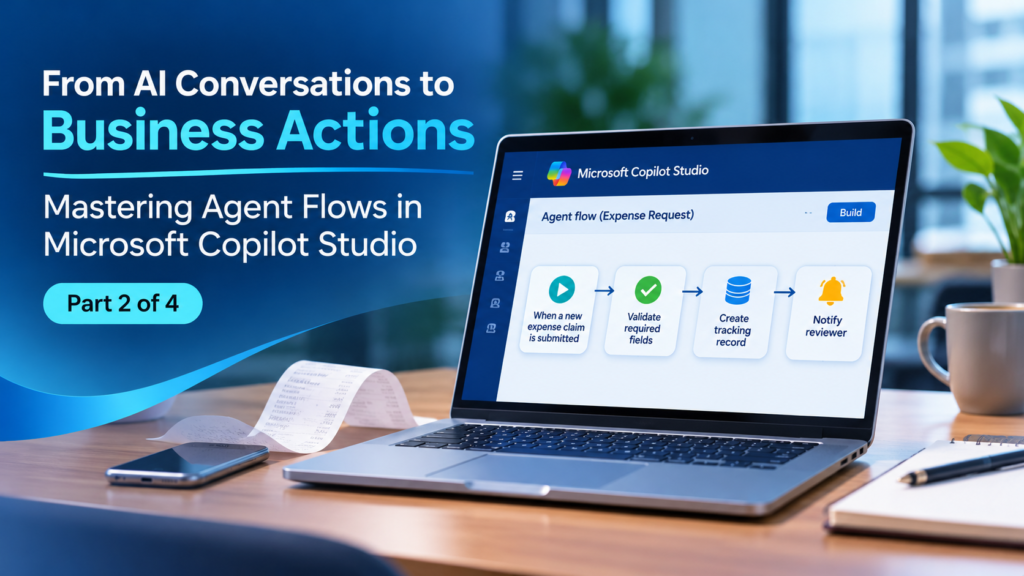 06 Nov 2026From AI Conversations to Business Actions
-
 05 Nov 2026From AI Conversations to Business Actions
-
 04 Nov 2026Scaling Beyond Chatbots: Building Industry-Ready Autonomous Agents on the Microsoft Ecosystem
-
 03 Nov 2026The Evolution of Healthcare AI Agents: Architecting Autonomous Workflows in Hospital Operations
-
 30 Oct 2026Beyond Implementation: The Importance of Ongoing Support in Enterprise Microsoft Deployments
-
 28 Oct 2026How to Choose the Right Microsoft Solution Partner for Enterprise Business Apps
Grow Your Business Today
Aggarwal Estate, Chitalsar Manpada, S V Road, Thane 400 610
Microsoft Solution Partner
Quick Link