- Corporate
- Solutions
- Microsoft Solutions Overview
- Microsoft Dynamics 365 Business Central ERP Solution with Copilot Ai technology
- Microsoft Dynamics 365 – Sales (CRM)
- Microsoft Sustainability Solutions
- Microsoft Copilot Services
- Microsoft Fabric
- Microsoft Dynamics 365 Finance
- Microsoft Dynamics 365 Supply Chain Management
- Marketplace Offers
- AI Agents
- Services

From AI Conversations to Business Actions
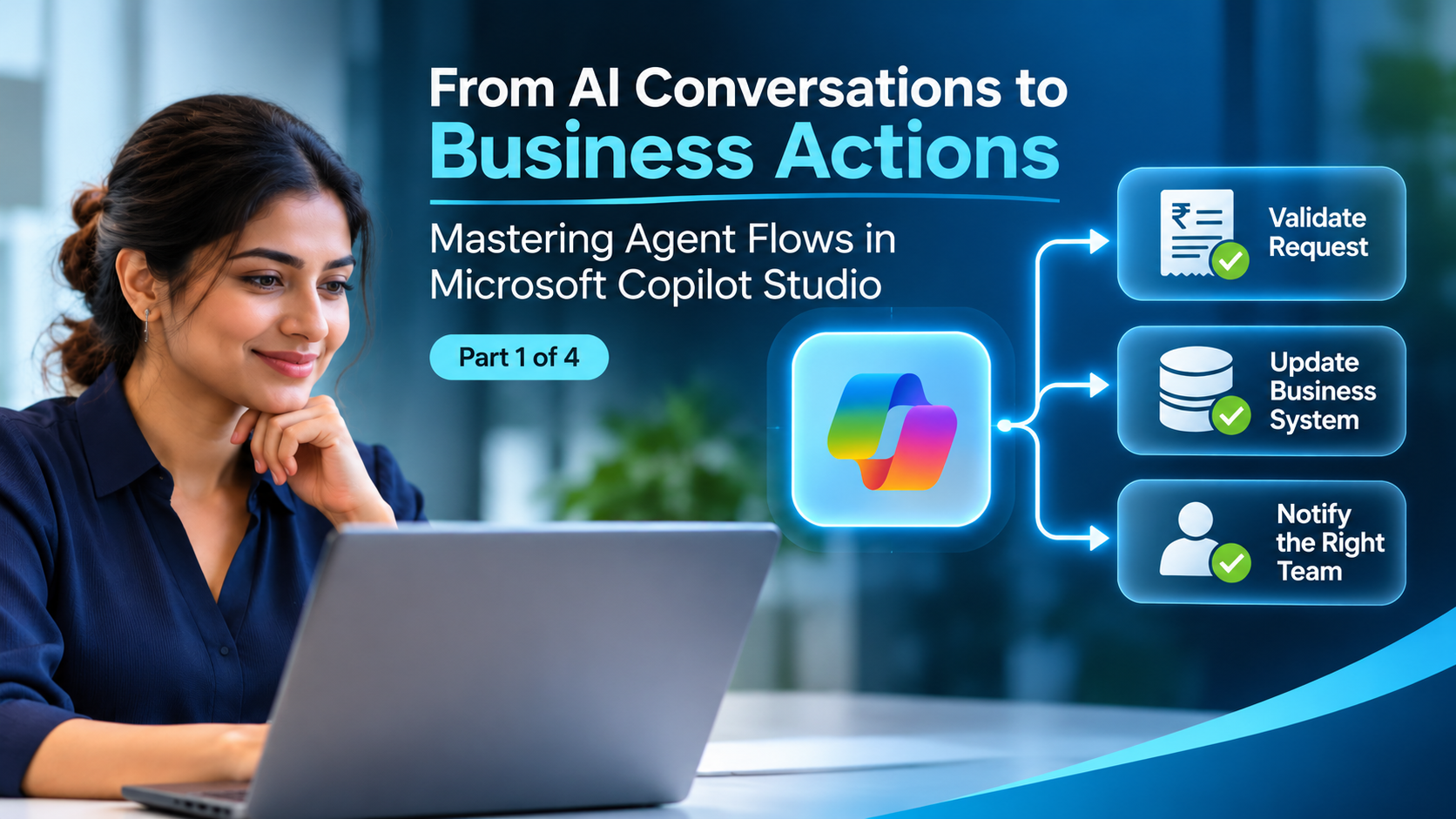
Agent Flows in Microsoft Copilot Studio Explained
Mastering Agent Flows in Microsoft Copilot Studio
Compusoft Advisors
Mastering Agent Flows in Microsoft Copilot Studio | Part 1 of 4
A customer asks an AI agent to check a request, update a business system and notify the right team. Answering the question is only the beginning. The business value comes from completing the work behind it.
Agent flows in Microsoft Copilot Studio automate a defined sequence of business tasks. A trigger starts the process, and actions perform the work. A flow can connect applications, apply conditions, use AI and involve people when a decision needs their input.
This four-part series follows that journey from understanding the building blocks to running a useful process in production. We will use an illustrative expense-request process throughout, so each instalment adds something practical to the last.
What is an agent flow
An agent flow is an automation created in Copilot Studio to carry out repeatable work. It might collect request details, retrieve a record, send a notification or route an item for review. Microsoft supports manual, scheduled and event-based triggers, alongside flows that agents call as tools. See Microsoft’s agent flows overview.
For our expense example, the process begins when a claim is submitted. The flow checks the submitted information, records the request and sends it to the appropriate reviewer. The employee does not need to chase each step separately.
Start by describing the outcome you need: “Every submitted claim receives a traceable status and reaches the correct reviewer.” That gives the automation a measurable purpose before you choose its actions.
How triggers and actions work together
The trigger answers “When should this process begin?” An action answers “What should happen next?” Conditions decide which path to follow.
For an expense request, a simple first design is :
- Receive a new claim from the selected source.
- Check that essential fields are present.
- Create a tracking record with a unique request reference.
- Notify the reviewer.
- Update the request status after review.
Keep a clear distinction between receiving a request and approving it. A successful submission should confirm that the claim was received; it should not imply that finance has authorised payment.
What deterministic means when AI is involved
Agent flows provide defined orchestration: you configure the steps, conditions and connections. However, defined orchestration does not guarantee identical AI-generated results. A model’s assessment can vary, source records can change, and an external service can fail.
Use explicit conditions for calculations and thresholds. Use AI where the process needs to interpret language or documents. Validate the result before allowing it to change a business record.
For example, a numerical condition can compare a claim amount with a policy limit. An AI step can help summarise the explanation attached to the claim. Treating these as separate responsibilities makes the process easier to review and improve.
Agent flows versus topics and Power Automate
|
Component |
Main role |
Example |
|
Topic |
Guide an agent conversation |
Ask which expense the employee wants to submit |
|
Agent flow |
Execute a defined business process |
Register the claim and route the review |
|
Power Automate cloud flow |
Automate work across applications under its licensing model |
Maintain an existing cross-department notification process |
These components can work together. An existing automation does not need replacing simply because a new agent is introduced. Microsoft explains that agent flows use Copilot Studio usage-based billing and do not require an individual Power Automate licence to create them. Connector and product requirements still need checking for the intended deployment. See the agent flows FAQ.
To explore the broader business context, see Compusoft Advisors’ AI agents in Copilot Studio and Microsoft Copilot services.
Choose a useful first process
Pick a process with a clear start, an identifiable owner and a result you can measure. Before building, record its current volume, handling time and common exceptions.
For the expense example, ask who owns policy decisions, where claim records will live, what counts as missing information and who handles exceptions. Those answers matter more than how quickly the first flow can be generated.
Compusoft’s Expense Management AI Agent provides a related solution to explore. The example in this series is an illustrative design, rather than a description of that solution’s implementation.
Frequently asked questions
Does every agent flow need AI
No. A flow can perform ordinary automation such as checking fields, updating records and sending notifications. Add AI when interpretation improves the process.
Is an agent flow the same as a conversational agent
No. An agent can interpret a user’s request and select tools. A flow carries out the configured process when triggered.
What should we define before building
Define the trigger, required data, process owner, expected outcome and exception route. Also identify the systems and permissions the flow will need.
Recent Post
-
 05 Nov 2026From AI Conversations to Business Actions
-
 04 Nov 2026Scaling Beyond Chatbots: Building Industry-Ready Autonomous Agents on the Microsoft Ecosystem
-
 03 Nov 2026The Evolution of Healthcare AI Agents: Architecting Autonomous Workflows in Hospital Operations
-
 30 Oct 2026Beyond Implementation: The Importance of Ongoing Support in Enterprise Microsoft Deployments
-
 28 Oct 2026How to Choose the Right Microsoft Solution Partner for Enterprise Business Apps
-
 15 Oct 2026Driving Business Growth and Lead Qualification with AI-Powered Assistants
Grow Your Business Today
Aggarwal Estate, Chitalsar Manpada, S V Road, Thane 400 610
Microsoft Solution Partner
Quick Link